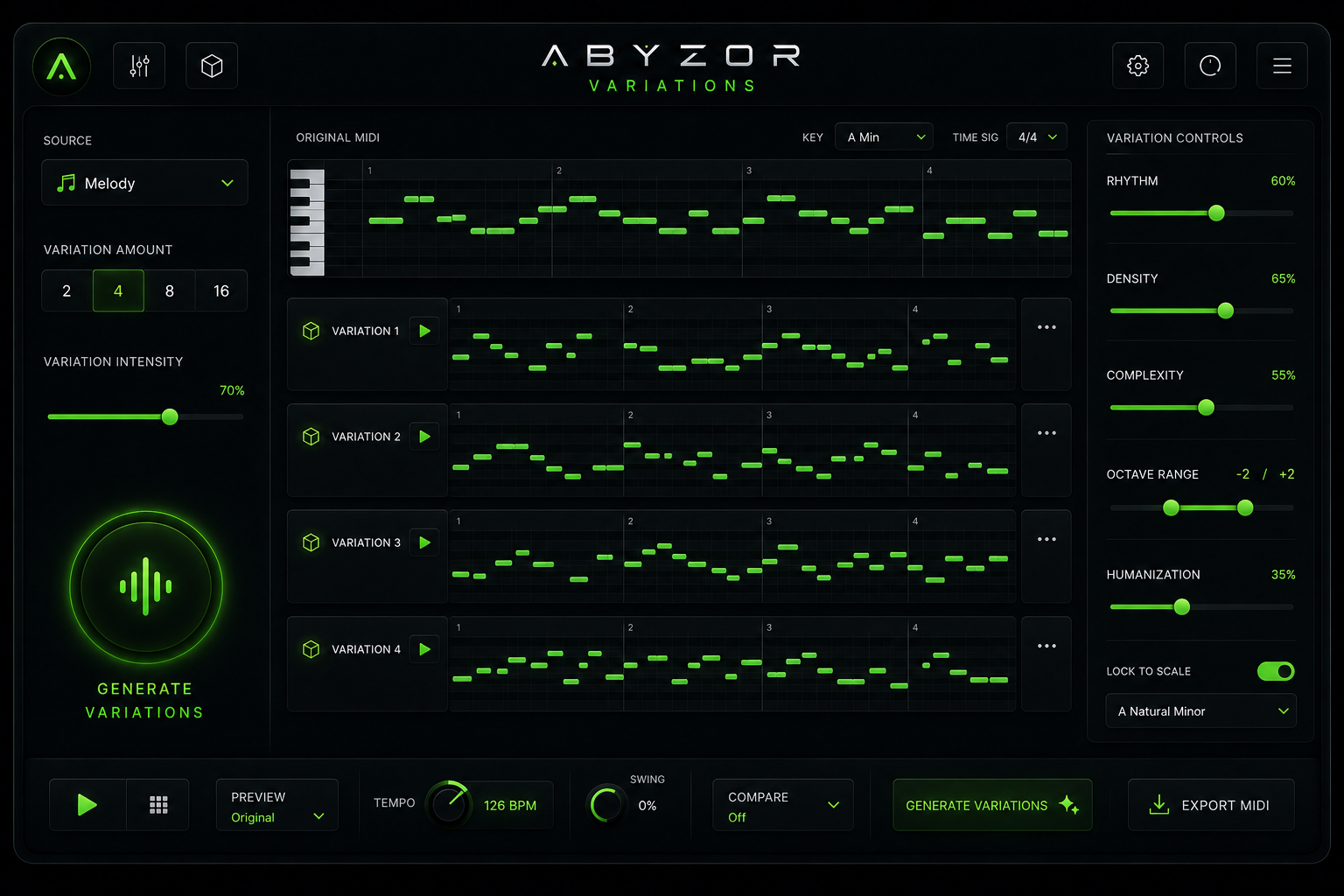
ABYZOR Variations is a MIDI variation generator for your DAW. Start from a melody, bassline, chord idea, or imported clip — then explore creative alternatives that stay musically related to your original phrase.
Unlike random MIDI generators, Variations is built to answer: “What else can this idea become?”
What is ABYZOR Variations?
ABYZOR Variations takes a source phrase (your “Original MIDI”) and produces either:
- Variations — multiple creative versions of the same idea (2, 4, 8, or 16 at a time), or
- Arrangement — layered parts (bassline, chords, arpeggio, counter melody) built from that idea.
You can generate a new source phrase inside the plugin, import an
existing .mid file, preview results with built-in audio, favorite the ones
you
like, and drag MIDI straight into Ableton Live or any VST3-compatible DAW.
ABYZOR Genesis (sibling product) answers: “Generate a new MIDI idea.”
ABYZOR Variations answers: “What else can this idea become?”
What’s included in v2.1.0
| Feature | Details |
|---|---|
| Platform | Windows 10+ (64-bit) |
| Plugin format | VST3 — installer or manual zip (ABYZOR-Variations-v2.1.0-…) |
| Distribution | Full ABYZOR Variations.vst3 bundle including embedded Resources/ (preview
samples, timbres, styles). Replace the entire folder when updating — do not copy only the inner binary. |
| Variations mode | Generate 2, 4, 8, or 16 variations per batch (default: 4) |
| Arrangement mode | Bassline, Chords, Arpeggio, Counter Melody layers |
| Piano roll editing | Draw, move, resize, delete, and undo notes on the original and every variation row — see Piano roll editing |
| Source workflow | Generate, import .mid, drag-and-drop onto Original MIDI card; automatic root/scale detection |
| Export | Per-row drag handles, per-row export, and DRAG ALL MIDIS |
| Per-channel preview | SYNTH, SAMPLE, or VST3 per preview channel with post-VST EQ — see Per-channel preview sound |
| Genre groove (WAVE) | Optional synthesized backing drums per Type; preview-only (never in exported MIDI) |
| LINK | DAW transport sync for preview audio on the same instrument track — replaces Host Sync MIDI; see LINK — DAW transport sync |
| Harmonic coherence | Multi-part alignment by Type — melody, bass, chords & arpeggio share a harmony timeline |
| SOURCE vs VARIATION controls | Separate panels — source sliders affect only original generation; variation sliders affect only mutations. Manual piano-roll edits on the original are not altered by variation controls. |
| Licensing | Online activation + offline Ed25519 token verification; encrypted local cache on your computer. Purchased at abyzor.space; KVR codes via redeem page |
| UI extras | Focus mode (SLIDERS), UI scale 100% / 125%, METRO, WAVE, LINK, CUBE randomize, update check, About overlay |
Not in the v2.1.0 Windows installer: macOS (DMG / ZIP),
Standalone .exe distribution.
Hidden from UI: The swing parameter exists for automation/presets but has no
on-screen control.
System requirements
- OS: Windows 10 or later (64-bit)
- DAW: Any host with VST3 instrument support (e.g. Ableton Live, FL Studio, Reaper, Cubase)
- Internet: Required for online license activation (offline path available)
- Disk: ~50 MB for plugin + installer
Installation
Installer (recommended)
- Close your DAW before installing.
- Run
ABYZOR-Variations-v2.1.0-Installer.exe. - On the folder page, select the VST3 plugins folder your DAW scans — typically:
C:\Program Files\Common Files\VST3\
You can also choose a custom folder (e.g.F:\Ableton\VSTS\VST3). - Finish the wizard. The installer copies the complete
ABYZOR Variations.vst3bundle (plugin binary +Resources/) to:…\VST3\ABYZOR Variations.vst3\ - Open your DAW → Rescan plugins.
- Load ABYZOR Variations as an Instrument (MIDI generator) — not as a MIDI FX.
Windows SmartScreen: Unsigned installers may show “Publisher unknown.” Click More info → Run anyway. This is expected until code signing is added.
VST3 only (advanced)
- Close your DAW before installing.
- Download
ABYZOR-Variations-v2.1.0-windows-manual.zipfrom abyzor.space/variations. - Extract the zip, close your DAW, and copy the full
ABYZOR Variations.vst3folder (includingResources/) intoC:\Program Files\Common Files\VST3\(or your DAW’s custom VST3 folder). - Open your DAW → Rescan plugins.
- Load ABYZOR Variations as an Instrument — not as a MIDI FX.
The manual zip skips Windows SmartScreen — useful if the installer is blocked. Both downloads are the same v2.1.0 build. Always keep the full.vst3folder withResources/— preview samples and timbres will not work if you copy only the inner binary.
Installing on macOS? See the dedicated macOS installation guide (DMG, ZIP, Gatekeeper, and licensing).
License activation
On first launch, a license overlay appears:
“Unlock generation, export and arrangement features.”
Online activation
- Paste your full license key from your purchase email, success page, or after redeeming a KVR code at abyzor.space/redeem (one long base64 string).
- Click ACTIVATE LICENSE.
- An internet connection is required.
Offline activation
- Click No internet? Activate offline.
- Copy your Machine Code shown in the plugin.
- On any device with internet, open https://abyzor.space/activate-offline/.
- Submit your License Key + Machine Code.
- Paste the Activation Token back into the plugin → ACTIVATE. The token is verified locally with Ed25519 cryptography.
After activation
Your license is saved locally on this computer in an encrypted cache. Updating from v2.0 to v2.1.0 does not require re-activation if the license file is intact.
Deactivate
SETTINGS (header) → Deactivate License on This Device…
Purchase & support
- PURCHASE LICENSE — opens the store
- KVR redemption: abyzor.space/redeem
- Support: https://abyzor.space/support
Quick start
Six-step workflow
- Activate your license (see above).
- Get an Original MIDI — import a
.midfile, click GENERATE in Source Controls, or use DICE on the Original MIDI card (generates source + batch in one go). - Set SOURCE — Root Note, Scale, Length, Source Pattern; tune Source Controls (Density, Complexity, Octave Range).
- Choose OUTPUT mode — Variations or Arrangement; set Type, Pattern (Variations only), amount, and intensity.
- Generate — click the large reactor button (GENERATE VARIATIONS or GENERATE ARRANGEMENT). Preview each row with ▶.
- Favorite (★), regenerate individual rows, and drag MIDI into your DAW.
Interface overview
The main window has three zones plus a header and a top workflow strip.
Header layout (left to right):
- Left: Type icon, TYPE, ▶ (play), LINK, METRO, WAVE (~)
- Right: Status, UPDATE, SETTINGS, CUBE, MENU
Click to expand
Header buttons
| Button | Function |
|---|---|
| SLIDERS | Focus mode — hides side panels; keeps Original MIDI + result list for a cleaner view |
| ▶ | Play / pause preview of the current target. With LINK ON, ▶ only selects which pattern to hear — it does not start the internal clock; DAW transport controls playback. |
| LINK | DAW transport sync (v2.1.0) — toggle green when active. When on, preview audio (synth, samples, per-channel VST, genre drums) follows DAW play/stop/seek and loop region. Session-only — not saved in presets. |
| METRO | Metronome on / off (independent of genre groove) |
| WAVE (~) | Genre groove on / off — when on, preview uses the Type’s genre BPM and synthesized backing drums; when off, BPM follows your DAW and only MIDI timbres play |
| UPDATE | Check for plugin updates |
| SETTINGS | UI Scale (100% / 125%), Metronome, Enable Genre Groove, Reset sliders, Clear favorites, Deactivate license. Host Sync (MIDI out) was removed in v2.1.0 — use LINK or MIDI drag/export instead. |
| CUBE | Right side of header — randomizes source + variation sliders, then regenerates (keeps favorited rows) |
| MENU | Import MIDI, Export current phrase, About |
Top strip
| Section | Contents |
|---|---|
| SOURCE | ROOT NOTE, SCALE, LENGTH, SOURCE PATTERN |
| ORIGINAL MIDI | Piano roll, play, GENERATE, DICE, drag-out, .mid drop zone |
| SOURCE CONTROLS | DENSITY, COMPLEXITY, OCTAVE RANGE, GENERATE, RANDOM |
Left panel (OUTPUT + Track Sound Controls)
The left column holds OUTPUT mode controls (TYPE, PATTERN, amount, reactor button) and, for each preview channel, Track Sound Controls — choose SYNTH, SAMPLE, or VST per row. See Per-channel preview sound.
| Control | Variations mode | Arrangement mode |
|---|---|---|
| MODE | Variations | Arrangement |
| TYPE | Musical style | Musical style |
| PATTERN | Variation pattern type | (hidden) |
| VARIATION AMOUNT | 2 / 4 / 8 / 16 | (hidden) |
| VARIATION INTENSITY | Slider | (hidden) |
| GENERATE toggles | — | BASSLINE, CHORDS, ARPEGGIO, COUNTER |
| Reactor button | GENERATE VARIATIONS | GENERATE ARRANGEMENT |
Center list
Each row shows:
- Label: VARIATION 1 … VARIATION 16 (with style badge), or BASSLINE / CHORDS / ARPEGGIO / COUNTER in Arrangement mode
- Editable piano roll with playback cursor
- ▶ Preview this row
- ★ Favorite (kept when regenerating the batch)
- Regen Regenerate only this row
- Export Export this row’s MIDI
- Drag handle Drag
.midinto your DAW
Right panel
SOURCE CONTROLS (beside Original MIDI): DENSITY, COMPLEXITY, OCTAVE RANGE — affect only
source generation, not manual piano-roll edits.
VARIATION CONTROLS (right column): RHYTHM, HUMANIZATION, DENSITY, COMPLEXITY, VELOCITY,
LOCK TO SCALE, OCTAVE RANGE — affect only variation mutations.
RANDOM — randomize variation knobs
DRAG ALL MIDIS — drag original + all generated rows at once
Preview audio & genre groove
ABYZOR Variations includes a genre-aware internal preview: each Type has timbres per role (Bassline, Melody, Chords, Arpeggio, Counter Melody) and an optional synthesized backing groove. Per-channel SYNTH, SAMPLE, or VST3 sources are documented in Per-channel preview sound. Use LINK to sync preview audio with your DAW transport. The groove is preview-only — it never appears in exported or dragged MIDI.
WAVE toggle (genre groove)
| WAVE state | Preview BPM | What you hear |
|---|---|---|
| On (green) | BPM of the selected Type’s genre profile (unless LINK is on — then always DAW) | Synthesized backing drums (kick / snare / hat / perc) + MIDI with Type timbres |
| Off (gray) | Your DAW host tempo (unless LINK is on — then always DAW) | MIDI with Type timbres only — no backing drums |
METRO and WAVE are independent: the metronome is a tempo reference; the groove adds genre rhythmic context. With LINK ON, preview BPM always follows the DAW regardless of WAVE state. You can also enable or disable genre groove from SETTINGS → Enable Genre Groove. Like the metronome, this setting is not saved in DAW presets (APVTS).
Type → preview profile (summary)
| Type | BPM | Groove style |
|---|---|---|
| Auto | 126 | Four-on-the-floor |
| House | 124 | Four-on-the-floor |
| Tech House | 126 | Four-on-the-floor + perc |
| Techno | 130 | Four-on-the-floor, sparse hats |
| Melodic Techno | 124 | Four-on-the-floor (softer) |
| Trance | 138 | Trance pulse |
| Drum & Bass | 172 | Syncopated breakbeat (synthetic) |
| Progressive House | 128 | Trance pulse |
| Cinematic | 90 | None |
| Ambient | 80 | None |
| Experimental | 110 | Sparse irregular hits |
| Dark Ambient | 70 | None |
| Rock | 120 | Rock backbeat |
| Folk | 100 | Acoustic pulse |
| Latin | 110 | Latin groove |
| World | 100 | Percussive |
| Meditation | 60 | None |
| Soul | 95 | Soul groove |
| R&B | 90 | R&B groove |
| Jazz | 120 | Swing feel |
| Funk | 105 | Funk groove |
| Deep House | 122 | Four-on-the-floor |
| Trap | 140 | Trap 808 |
| Hip Hop | 90 | Hip hop groove |
Export note: Dragged and exported MIDI files contain only the generated musical parts — zero drum or backing notes from the preview engine.
Per-channel preview sound
Each preview track (melody, bass, chords, arpeggio, counter melody, etc.) has an independent sound source in the left panel Track Sound Controls. No extra DAW track is required for auditioning VSTs or samples.
Sound modes
| Mode | Description |
|---|---|
| SYNTH | Internal timbres from the embedded Resources/ bundle. Prev/next arrows cycle
presets. Header mode button shows SYNTH. |
| SAMPLE | User audio file — WAV, MP3, AIF, FLAC, or OGG. Loaded via BROWSE, the green slot, or drag-and-drop. |
| VST | Per-channel VST3 hosting inside ABYZOR. Load .vst3 plugins without
adding a separate instrument track in your DAW. |
Loading a VST or sample
- Click BROWSE, click the green slot (“CLICK OR DROP”), or drag-and-drop a
.vst3bundle or audio file onto the slot. - The header mode button cycles SYNTH → SAMPLE → VST.
When a VST is loaded
- OPEN — open the plugin’s editor window
- UNLOAD — remove the VST from this channel
- EQ ON/OFF + instrument type (Sub, Pad, Lead, etc.) — EQ is applied after the VST output, with per-channel filter state (no cross-channel artifacts)
Record on the same track: Combine per-channel VST preview with LINK to bounce or record audio directly on the ABYZOR Variations instrument track when the DAW transport plays.
LINK — DAW transport sync
Added in v2.1.0. LINK connects internal preview audio to your DAW’s transport so you can record or bounce loops on the same instrument track — no second track with an external synth required.
Preview audio includes the internal synth, loaded samples, per-channel VST3 plugins, and genre backing drums (when WAVE is on).
How LINK behaves
| LINK | DAW Play | ▶ header / row | Audio on track | Preview BPM |
|---|---|---|---|---|
| OFF | ignored | starts/stops free preview | only with internal ▶ | genre (WAVE on) or DAW (WAVE off) |
| ON | controls audio | selects preview target only | with DAW transport | always DAW |
With LINK ON, preview BPM always follows your DAW — the Type’s genre BPM is ignored.
When the DAW playhead leaves the loop region [start, end), preview goes silent
(no stuck notes).
Recommended workflow
- Load a VST3 or sample on the channel(s) you want to hear (left panel).
- Enable LINK in the header (green when active).
- Click ▶ on the original, variation, or arrangement row you want to record.
- Press Play in your DAW and record or bounce audio on the ABYZOR Variations track.
Replaces Host Sync: The v2.0 Host Sync submenu (MIDI out to an external synth) was removed in v2.1.0. Use LINK for synced audio on the same track, or drag/export MIDI to another track.
Call & Response — STRUCTURE (composition blocks)
Enable STRUCTURE in the STRUCTURE panel to write in phrases, not just a flat loop. Each block (A–D) has a fixed role: Call, Response, Development, and Resolution.
The plugin generates the Call (A) within the block's time window and extracts the motif
(rhythm + intervals). Following blocks derive from that motif via motivicSimilarity, with
transposition by role (+2 semitones for Response, +4 for Development). The Motivic link
slider regulates how closely B/C/D stay connected to A.
Choose 2 or 4 blocks and the Order (AB, ABAB, ABAC, ABCD…). The result is a phrase with musical dialogue — question and answer — ready for variations, arrangement, and per-block export. See also the product page overview.
Block roles
| Block | Role | Behaviour |
|---|---|---|
| A | Call | Generated first within the block time window |
| B | Response | Motif derived from A, transposed +2 semitones |
| C | Development | Motif derived from A, transposed +4 semitones |
| D | Resolution | Closes the phrase dialogue |
Permutations (Order)
Built-in sequence presets: AB, ABAB, ABAC, ABCD, AABB, ACAB. Custom A–D strings are also supported when using 4 blocks.
Controls
| Control | What it does |
|---|---|
| STRUCTURE toggle | Enable or disable composition blocks |
| Block count | 2 blocks (A–B) or 4 blocks (A–D) |
| Motivic link | Slider — connection strength to block A (higher = closer to the Call motif) |
| Order dropdown | Sequence permutation for the clip (AB, ABAB, ABAC, ABCD…) |
| Per-block actions | Regenerate, lock, or undo each block independently (up to 5 undo snapshots) |
Piano roll & export
- When blocks are active, the piano roll shows vertical dividers between block regions.
- Export blocks writes each block as a separate MIDI clip to a folder.
- Composition state is saved in the DAW project (
stateVersion4).
Known limits (v1): Bass and arpeggio are not yet generated per-block. Block order can only be changed via the Order permutation dropdown — not by drag-reordering. Quick Hook ignores composition blocks.
Modes in depth
SOURCE vs VARIATION controls: SOURCE CONTROLS (density, complexity, octave range beside the Original MIDI) affect only source phrase generation. VARIATION CONTROLS (right panel) affect only variation mutations. Manual edits on the original piano roll are never altered by variation sliders — see Piano roll editing.
Variations mode
- Takes your Original MIDI and produces N alternatives (2, 4, 8, or 16).
- Each slot gets a style badge (RHYTHMIC, DENSE, etc.) describing the mutation character.
- Favorited rows (★) are preserved when you click the reactor or CUBE again — only non-favorited slots are regenerated.
- Use VARIATION INTENSITY to control how far variations drift from the source.
- PATTERN sets the musical role of variations (melody, bassline, chords, arpeggio) independently from SOURCE PATTERN — until you change Source Pattern, which syncs Pattern to match.
Arrangement mode
- Builds layers from one source phrase: BASSLINE, CHORDS, ARPEGGIO, COUNTER (counter melody).
- Toggle which parts to include under GENERATE. If all are off, Bassline is used as fallback.
- VARIATION INTENSITY mainly affects the counter melody layer in this mode.
- TYPE influences the musical character of all generated parts.
Variation badges
When generating variations, each slot is labeled with a badge (cycles for batches larger than 8):
| Badge | What to expect |
|---|---|
| RHYTHMIC | More rhythmic movement |
| DENSE | Higher note density |
| MELODIC | Wider melodic range |
| CREATIVE | Most creative variation |
| SIMPLIFIED | Fewer notes, more space |
| OCTAVE | Shifted octave intervals |
| INVERTED | Upside-down contours |
| SYNCOPATED | Offbeat rhythmic accents |
Import and export MIDI
Import
| Method | How |
|---|---|
| Drag & drop | Drop a .mid file onto the Original MIDI card |
| Menu | MENU → Import MIDI File… |
What happens on import:
- Notes become your Original MIDI (drum channel 10 is excluded).
- Length adjusts to match clip content.
- Root Note and Scale are detected from the note content (MIDI key signature is used only as a tiebreaker when ambiguous).
- Octave range (source) updates to fit the clip.
- Existing variations are cleared; preview switches to Original.
- You can refine the clip immediately in the piano roll — draw, move, or delete notes before generating variations.
Export
| Method | Output |
|---|---|
| Row drag handle | Abyzor_Original.mid, Abyzor_Variation_N.mid, or arrangement part names
|
| DRAG ALL MIDIS | Original + every row with notes |
| MENU → Export Current Playback Phrase… | Save what is currently playing to a .mid file |
| Row Export button | Export that row |
All exports require a valid license.
Piano roll editing
Every row — Original MIDI and each variation or arrangement line — has an editable piano roll. Use it to fix imports, sketch ideas, or tweak generated output without leaving the plugin.
Actions
| Action | How |
|---|---|
| Draw note | Click and drag horizontally to set note duration |
| Move note | Drag a note to a new pitch or time position |
| Resize note | Drag the right edge of a note |
| Delete note | Right-click a note |
| Undo | Ctrl+Z (up to 32 undo levels) |
Rules
- Notes snap to the quarter-note grid.
- Two notes cannot overlap on the same pitch.
- Edits on the original roll are preserved when you change VARIATION CONTROLS — variation sliders only affect newly generated mutations, not manual source edits.
Parameters reference
ABYZOR Variations exposes 26 parameters to the DAW (automation/presets). 25 have on-screen controls; swing has no on-screen control.
Defaults below match a fresh plugin instance.
OUTPUT
MODE (outputMode)
| UI | OUTPUT → MODE |
|---|---|
| Options | Variations, Arrangement |
| Default | Variations |
| What it does | Switches between variation batches and multi-part arrangement. Changing mode clears generated output slots. |
SOURCE (top strip)
ROOT NOTE (rootNote)
| UI | SOURCE → ROOT NOTE |
|---|---|
| Options | C, C#, D, D#, E, F, F#, G, G#, A, A#, B |
| Default | A |
| What it does | Tonic for generation and scale locking. Label may show flat spelling (e.g. Ab, Gb) after import. |
SCALE (scale)
| UI | SOURCE → SCALE |
|---|---|
| Options | Major, Minor, Harmonic Minor, Melodic Minor, Dorian, Phrygian, Lydian, Mixolydian, Locrian, Pentatonic, Blues |
| Default | Minor |
| What it does | Note palette for source generation and (when locked) variations. |
LENGTH (length)
| UI | SOURCE → LENGTH |
|---|---|
| Options | 1 Bar, 2 Bars, 4 Bars, 8 Bars |
| Default | 4 Bars |
| What it does | Loop length. Changing length trims stored notes to fit. |
SOURCE PATTERN (sourceType)
| UI | SOURCE → SOURCE PATTERN |
|---|---|
| Options | Melody, Bassline, Chords, Arpeggio |
| Default | Melody |
| What it does | Pattern type when generating the Original MIDI. Changing this also copies the value to PATTERN (variation pattern). |
SOURCE CONTROLS (right of Original MIDI)
DENSITY (sourceDensity)
| UI | SOURCE CONTROLS → DENSITY |
|---|---|
| Range | 0% – 100% |
| Default | 65% |
| What it does | How many notes appear in a generated source phrase. |
COMPLEXITY (sourceComplexity)
| UI | SOURCE CONTROLS → COMPLEXITY |
|---|---|
| Range | 0% – 100% |
| Default | 55% |
| What it does | Harmonic and melodic complexity of the generated source. |
OCTAVE RANGE (sourceOctaveMin, sourceOctaveMax)
| UI | SOURCE CONTROLS → OCTAVE RANGE |
|---|---|
| Range | −8 to +8 (each end) |
| Default | −2 to +2 |
| What it does | Pitch register limits for source generation. Updated automatically on MIDI import. |
OUTPUT — Variations mode (left panel)
TYPE (musicalType)
| UI | TYPE |
|---|---|
| Options | Auto, House, Tech House, Techno, Melodic Techno, Trance, Drum & Bass, Progressive House, Cinematic, Ambient, Experimental, Dark Ambient, Rock, Folk, Latin, World, Meditation, Soul, R&B, Jazz, Funk, Deep House, Trap, Hip Hop |
| Default | Auto |
| What it does | Musical style for generation, mutation, harmonic policies, and preview timbre/groove. Auto picks style from internal logic. In Arrangement mode, melody, bass, chords, and arpeggio share a harmony timeline aligned to the selected Type. Changing Type updates generation behaviour, preview timbres, and optional backing groove together. |
PATTERN (variationPattern)
| UI | PATTERN (Variations mode only) |
|---|---|
| Options | Melody, Bassline, Chords, Arpeggio |
| Default | Melody |
| What it does | Pattern type for generated variations (separate from Source Pattern until Source Pattern changes). |
VARIATION AMOUNT (variationAmount)
| UI | VARIATION AMOUNT → 2 / 4 / 8 / 16 |
|---|---|
| Options | 2, 4, 8, 16 |
| Default | 4 |
| What it does | How many variation slots are filled per generate action. |
VARIATION INTENSITY (variationIntensity)
| UI | VARIATION INTENSITY |
|---|---|
| Range | 0% – 100% |
| Default | 70% |
| What it does | How strongly variations mutate away from the Original. Higher = more change. |
OUTPUT — Arrangement mode (left panel)
GENERATE toggles
| Parameter | UI label | Default | What it does |
|---|---|---|---|
arrangementBassline |
BASSLINE | On | Include bassline part |
arrangementChords |
CHORDS | On | Include chord part |
arrangementArpeggio |
ARPEGGIO | On | Include arpeggio part |
arrangementCounterMelody |
COUNTER | On | Include counter-melody part |
At least one part should be enabled. If all are off, Bassline is generated as fallback.
VARIATION CONTROLS (right panel)
These affect variations and arrangement mutation (not the initial source generate knobs).
RHYTHM (rhythm)
| Range | 0% – 100% |
|---|---|
| Default | 60% |
| What it does | Rhythmic mutation strength — timing and groove changes. |
DENSITY (density)
| Range | 0% – 100% |
|---|---|
| Default | 65% |
| What it does | Note density in variations (separate from source density). |
COMPLEXITY (complexity)
| Range | 0% – 100% |
|---|---|
| Default | 55% |
| What it does | Harmonic/melodic complexity of variations. |
HUMANIZATION (humanization)
| Range | 0% – 100% |
|---|---|
| Default | 35% |
| What it does | Subtle timing and feel variations for a less mechanical result. |
VELOCITY (velocityVar)
| Range | 0% – 100% |
|---|---|
| Default | 20% |
| What it does | Random velocity variation on generated notes. |
LOCK TO SCALE (scaleLock)
| Default | On |
|---|---|
| What it does | When enabled, variation notes are constrained to the selected Root + Scale. Turn off for freer chromatic exploration. |
OCTAVE RANGE (octaveMin, octaveMax)
| Range | −8 to +8 |
|---|---|
| Default | −2 to +2 |
| What it does | Pitch register limits for variations (independent from source octave range). |
Hidden parameter (automation / presets only)
SWING (swing)
| UI | (no on-screen control) |
|---|---|
| Range | 0% – 100% |
| Default | 0% |
| What it does | Swing amount in the generation engine. May be exposed in a future UI update; can still be automated from the DAW if your host exposes all plugin parameters. |
Tips and best practices
- Load as Instrument — Route the MIDI output to a synth or sampler on the same or another track.
- Start from your own loop — Import a
.midclip that represents your idea; Variations preserves musical identity better than random generation. - Use favorites as a shortlist — Star the best rows, then regenerate — only non-favorited slots change.
- Split Source vs Pattern — Generate a melody as Source Pattern but set Pattern to Arpeggio for arpeggiated variations.
- TYPE = Auto — Good starting point; switch to a specific genre when you want a stronger style bias. Changing Type updates harmonic policies, preview timbres, and backing groove together.
- WAVE (genre groove) — Turn on to hear your Type in rhythmic context at genre BPM; turn off to evaluate against your DAW tempo.
- LINK + VST per channel — Load a VST on a preview channel, enable LINK, select a row with ▶, then record from the DAW transport on the same instrument track.
- Piano roll fixes — After import or generation, nudge notes directly in the roll instead of regenerating the whole batch.
- LOCK TO SCALE — Leave on for club-ready material; turn off for experimental passes, then re-enable.
- Focus mode (SLIDERS) — Use when comparing many variations on the piano rolls.
- DICE — Fast inspiration: new source + full batch in one click.
- CUBE — Explore random slider combinations without losing favorited variations.
- After import — Verify ROOT NOTE and SCALE; override manually if your clip is ambiguous or very short.
Troubleshooting
Plugin does not appear in my DAW
- Confirm installation path matches your DAW’s VST3 scan folder.
- Run a full rescan of plugins.
- Load as Instrument, not MIDI FX.
- Restart the DAW after installing.
License prompt every launch
- Ensure antivirus, backup, or sync tools are not blocking the plugin from saving license data on this computer.
- Try Deactivate then activate again (SETTINGS → Deactivate License on This Device…).
- For offline activation, use the Machine Code shown on this computer.
“Could not save the license on this computer”
- Run the plugin from a normal Windows user account (not a restricted or portable profile).
- Try Deactivate then activate again.
- If it still fails, contact support with your license key and receipt.
Wrong root / scale after MIDI import
- Very short clips or unusual bass voicing can confuse detection — set ROOT NOTE and SCALE manually.
- Detection prioritizes note content; MIDI key signature is only used when multiple keys fit equally well.
Installer blocked by SmartScreen
- Click More info → Run anyway (unsigned installer).
- Download only from abyzor.space or official release channels.
Preview or VST sounds distorted (EQ on)
- Toggle EQ off and on, or UNLOAD and reload the VST on that channel.
- Ensure you installed the full
ABYZOR Variations.vst3bundle withResources/.
Stuck notes or silence with LINK
- With LINK on, audio only plays inside the DAW loop region — adjust the loop brace.
- Stop DAW transport and toggle LINK off/on to reset preview state.
Preview sounds wrong or stops early
- Check DAW transport / plugin preview play button.
- With LINK on, preview only plays inside the DAW loop region — extend or move the loop brace if audio cuts out.
- Ensure LENGTH matches your material.
- Try toggling METRO if timing feels off.
- Check WAVE: with groove off, preview BPM follows your DAW — timing may differ from genre BPM.
- Change TYPE to match the style you expect — timbres and groove profile follow the Type.
No drums in exported MIDI
- Expected behaviour — the synthesized backing groove is internal preview only and is never written to exported or dragged MIDI files.
Clean reinstall (testing)
To test installation and activation from scratch:
- Uninstall ABYZOR Variations via Windows Settings → Apps.
- In the plugin: SETTINGS → Deactivate License on This Device… (optional but recommended before a clean reinstall).
- Remove the entire
ABYZOR Variations.vst3folder (includingResources/) from your VST3 directory if it remains. - Reinstall v2.1.0 and activate again.
Links
| Resource | URL |
|---|---|
| Website | https://abyzor.space |
| Product page | https://abyzor.space/products/variations/ |
| Downloads | https://abyzor.space/variations/ |
| Changelog | https://abyzor.space/variations/changelog/ |
| Support | https://abyzor.space/support |
| KVR redemption | https://abyzor.space/redeem/ |
| Offline activation | https://abyzor.space/activate-offline/ |
© 2026 ABYZOR Audio · ABYZOR Variations v2.1.0
One Idea. Infinite Possibilities.